How to Start Parent–Child Birdwatching: Step-by-Step Smart Feeder Setup
Learn how to quickly set up a smart bird feeder camera with your child. Follow 3 simple steps for real-time alerts, easy bonding, and safe, fun backyard birdwatching.
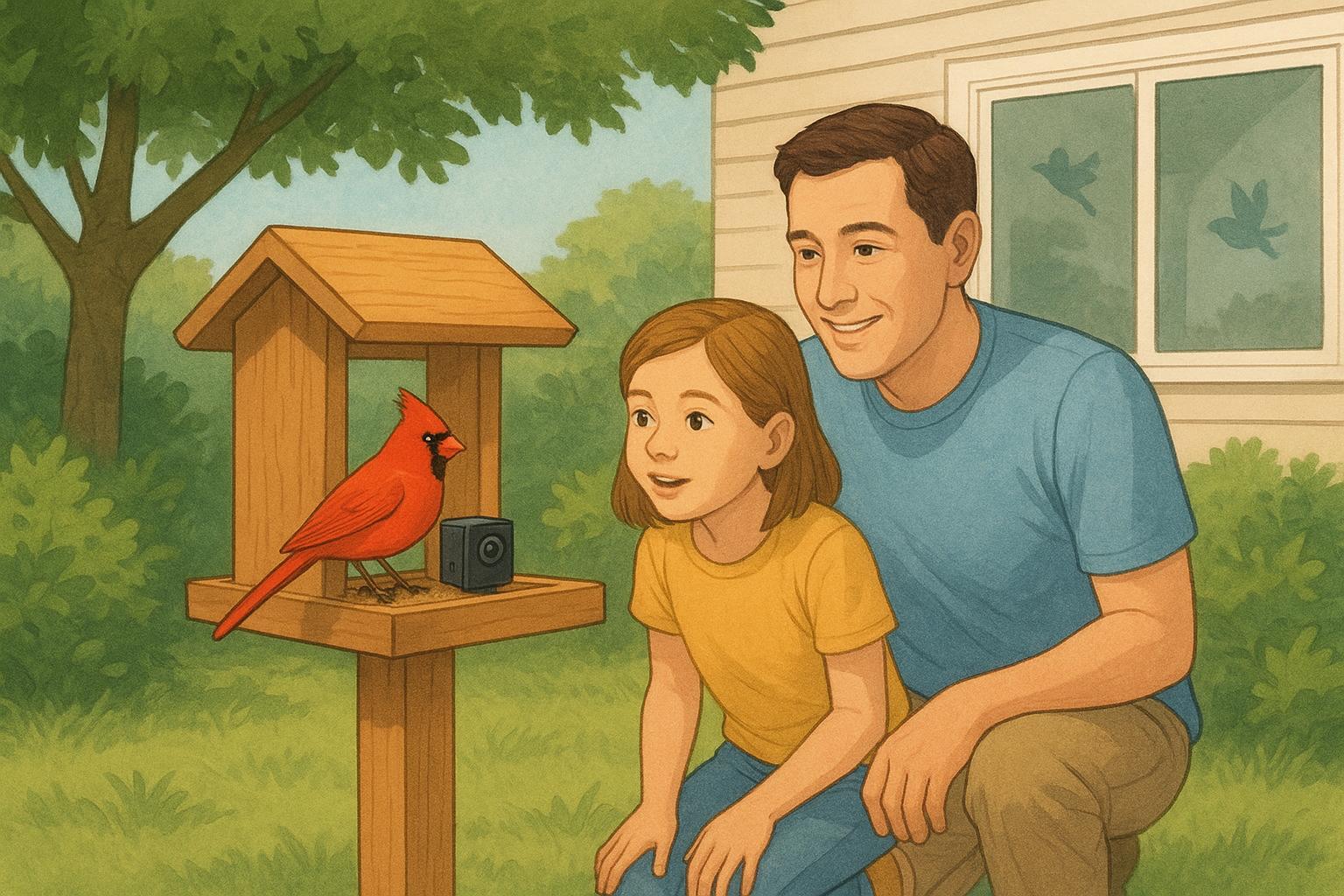
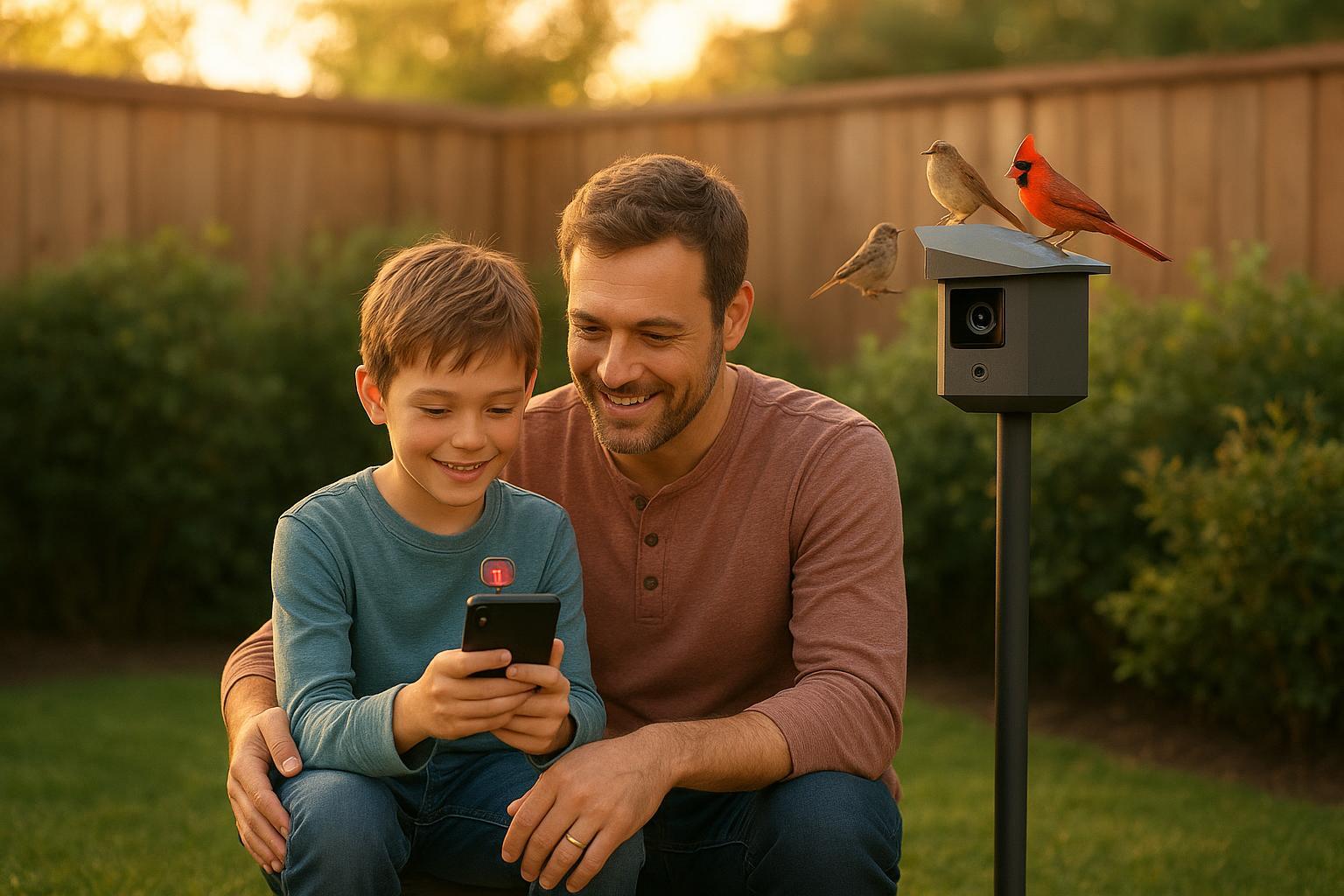
A small buzz on your phone, a whisper of wings outside, and your child leans in: “Who is it today?” In less than a minute, you’re looking together at a crisp clip of a bright-red visitor. That’s the promise of a smart bird feeder camera—simple setup, instant alerts, and shared moments that pull everyone to the window.
Key takeaways
A smart feeder camera can be up and running in three moves: mount and power, pair the app with notifications, and share your first ID moment together.
Keep it kid-friendly with clear roles (spotter, journal keeper) and quick verification checkpoints so everyone sees progress.
Use app notifications sparingly and intentionally to spark short, joyful breaks—without adding screen fatigue.
Before you start: Setting the stage for discovery
It turns "waiting" into "watching" Traditional birdwatching teaches patience, but for energetic kids, the wait can be discouraging. A smart feeder bridges that gap. It watches when you can’t, ensuring that when the alert buzzes, the action is already happening. This shifts the experience from "sitting and waiting" to "running to see," keeping engagement high.
Step 1: Mount and power (5–15 minutes)
Choose a steady spot with a clear view and nearby shrubs or a small tree. That natural cover helps birds feel safe while they approach. If your setup is close to windows, make the glass more visible to reduce collisions—treatments like films, markers, or screens can help, as outlined by the Cornell Lab’s guidance in their overview on keeping birds safe from window collisions. Assemble and fully charge your feeder camera indoors if your model recommends it; then attach it to a pole, wall bracket, or hanger so it doesn’t wobble when you give it a gentle nudge.
Educational significance: Setting up the feeder becomes a quick lesson in observation, problem‑solving, and cause‑and‑effect. Kids see how choices—adding cover or making glass visible—create safer, more inviting spaces, and they test ideas with a gentle shake or a move. It’s also early tech literacy: noticing “ready” lights and prompts, and how digital tools connect us to the outdoors. Each tweak is a small experiment that builds confidence and curiosity.
Kid role: Ask your child to be the “stability checker.” Have them gently tap the mount (under supervision) and call out any wiggles or tilts you need to fix. It’s a simple way to involve them from the start.
Verification checkpoint: Power the device on and confirm whatever “ready” indicator your model uses (status light or voice prompt). If your app supports a live view after pairing, you’ll take a quick test clip in the next step to prove the angle and focus are good.
Rapid fix if things go sideways: If the mount feels loose, add a second strap or move to a sturdier post. If you’re near glass and worried about strikes, start with a spot farther from large panes and revisit window treatments later.
Step 2: Pair the app and turn on real-time notifications (10–20 minutes)
Open the feeder’s app, tap the “+” or Add Device button, and scan your device’s QR code. Connect to your home’s 2.4 GHz Wi‑Fi (many feeder cameras don’t support 5 GHz). Follow the on‑screen prompts until the device shows up in your app. Then enable push notifications and choose a mode you’re comfortable with to keep alerts meaningful rather than constant.
Family sharing tip: If your app supports sharing, add a co‑parent or invite your kid as a view‑only guest on their tablet or an old phone—this creates a shared “doorbell for birds” without giving them control of settings.
Verification checkpoint: Stand near the feeder and wave a hand or place a small object in front of the camera to trigger a test clip. Confirm you receive a push alert and see a short “moment” saved in the app.
Rapid fix if alerts don’t appear: Check that your phone’s OS notifications are allowed for the app. If pairing fails, make sure your phone is actually on 2.4 GHz, re‑enter the Wi‑Fi password carefully, and move closer to the router for the first connection.
A quick, real‑life example (with a neutral product mention)
Disclosure: Birdfy is our product.
Here’s how this step looks in practice with Birdfy. After mounting and charging, you open the Birdfy app, tap “+,” scan the camera’s QR code, and connect to your 2.4 GHz Wi‑Fi. The support team maintains a concise Getting Started guide for common models, and their app introduction explains notification modes and sharing. These resources help families confirm they’re on the right Wi‑Fi band and tailor alerts for “just enough” excitement.
Step 3: Welcome your first guest, identify it together, and start a ritual (10–20 minutes now, then ongoing)
Start with a seed that many backyard birds love—black‑oil sunflower seed—and keep it fresh. Place the feeder near cover, sweep up shells beneath it, and give it a little time; visits often ramp up over days. Cornell Lab’s primer on choosing feeders and seed is a helpful reference when you’re deciding what to try next.
When the first alert arrives, gather everyone for a short “who’s visiting?” moment. Use Merlin Bird ID’s Photo ID on the saved clip or a still frame to confirm a likely species; their project overview explains how to use sound and photo identification in plain language in the Merlin Sound ID overview. Keep it playful.
Kid role: Make your child the family “journal keeper.” Have them write the date, draw the visitor, and add one detail they noticed—color of the cap, shape of the beak, or a quirky hop. If your family likes citizen science, you can log stationary backyard sightings together using eBird; the eBird Get Started guide walks through the basics.
Verification checkpoint: You’ve received at least one push alert, saved a clip or photo, identified one common local species with Merlin, and added the first entry to your journal. That’s your milestone—celebrate it.
Hygiene nudge: Set a reminder to clean the feeder regularly. Cornell Lab explains simple, effective methods—hot soapy water, boiling water, or a brief diluted bleach soak—on their page on how to clean your bird feeder. Clean more often in wet weather or heavy use.
Safety, hygiene, and kid privacy—essentials in one place
Window awareness: If your feeder is near glass, make those panes more visible with films, markers, netting, or screens; Cornell’s window safety hub lists practical options. Even simple dot patterns at the right spacing can help birds see the barrier in time.
Cleaning cadence: Clean seed feeders roughly every two weeks, and more often during wet spells or if your region issues disease advisories. Audubon chapters and local wildlife agencies sometimes post updates; follow local guidance and keep the ground beneath feeders tidy.
Kid privacy basics: Review what permissions the app requests and keep children’s access view‑only when possible. The U.S. Federal Trade Commission offers plain‑language advice on protecting children’s data in its consumer guide to kids’ privacy online. Keep notifications on adult devices or shared family screens rather than a child’s personal phone.
Troubleshooting: quick answers when something isn’t working
No alerts yet? Confirm the device shows as online in the app, then check that your phone allows notifications for the app and that you chose a push mode that actually sends them. Pairing trouble usually comes down to the Wi‑Fi band—ensure you’re on 2.4 GHz, move closer to the router for the first handshake, and try re‑entering the password. If birds haven’t visited, refresh the seed, keep the feeder near cover, and give it a few days. Cold snap cutting battery life short? Charge indoors and consider a compatible solar panel for your model once things are stable.
Next steps: make it a family habit
Create a short daily ritual: a morning “check the feeder” glance together, one journal note, and one shared notification in the evening. Rotate kid roles weekly—spotter, journal keeper, and “cleanup captain.” If you’re considering a smart feeder camera, explore models that support simple QR pairing, 2.4 GHz Wi‑Fi, and notification controls that fit family life. If you want a neutral, family‑friendly option that supports app sharing and helpful pairing guides, Birdfy is a fit to consider; you can learn more on their site and use the support resources linked above. Then, when the next alert buzzes, you’ll both look up—and that brief shared pause will be the best part of your day.
Tags
Ready to Get Started?
Join thousands of readers and get the latest content and insights in robot manufacturing.
Join Now